Maximize Wi-Fi 7 Performance: 2026 U.S. Household Guide
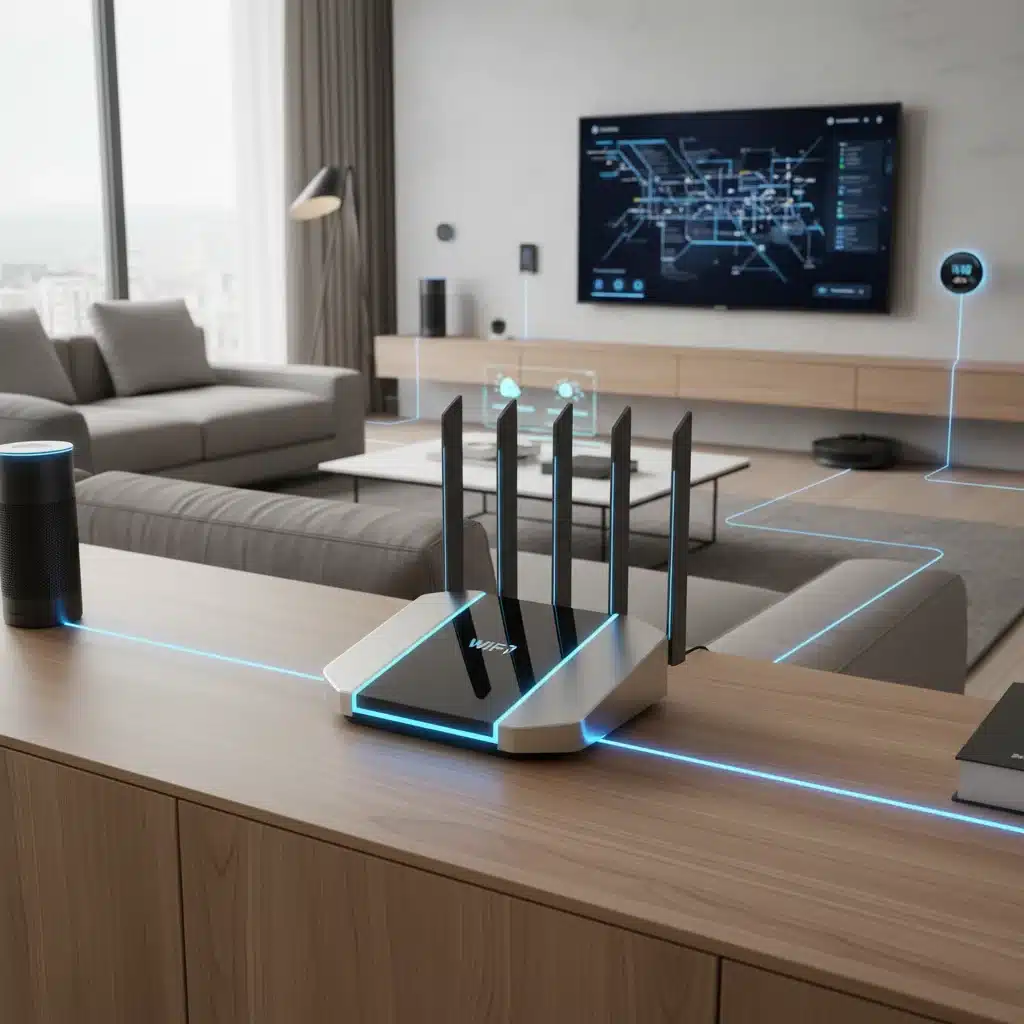
Maximizing Your Wi-Fi 7 Router Performance in 2026: Insider Tips for U.S. Households
Welcome to 2026! The digital landscape in U.S. households has evolved dramatically, with Wi-Fi 7 (802.11be, also known as Extremely High Throughput or EHT) now becoming the standard for unparalleled wireless connectivity. If you’ve invested in a cutting-edge Wi-Fi 7 router, you’re already ahead of the curve. But simply owning the latest technology isn’t enough; to truly harness its power and achieve peak Wi-Fi 7 Performance Tips, you need to optimize your setup. This comprehensive guide is designed for U.S. households looking to squeeze every last drop of speed, efficiency, and reliability from their Wi-Fi 7 network.
The promise of Wi-Fi 7 is staggering: theoretical speeds up to 46 Gbps, significantly lower latency, and enhanced capacity for a multitude of devices. This is crucial as our homes become increasingly smart, filled with 4K/8K streaming, VR/AR applications, online gaming, and a growing ecosystem of IoT devices. Without proper optimization, even the most advanced Wi-Fi 7 router can fall short of its potential. Let’s dive into the essential strategies and insider tips to ensure your home network is future-proof and performing at its absolute best.
Understanding Wi-Fi 7: The Foundation of Optimal Performance
Before we delve into optimization, it’s vital to understand what makes Wi-Fi 7 so revolutionary. This isn’t just an incremental upgrade; it introduces several groundbreaking technologies that collectively enhance Wi-Fi 7 Performance Tips:
- 320 MHz Channels: Wi-Fi 7 doubles the maximum channel width from Wi-Fi 6E (160 MHz) to 320 MHz, allowing for significantly more data to be transmitted simultaneously, especially in the 6 GHz band.
- 4096-QAM (4K-QAM): This higher-order modulation scheme packs more data into each signal, leading to a 20% increase in peak data rates compared to Wi-Fi 6/6E’s 1024-QAM.
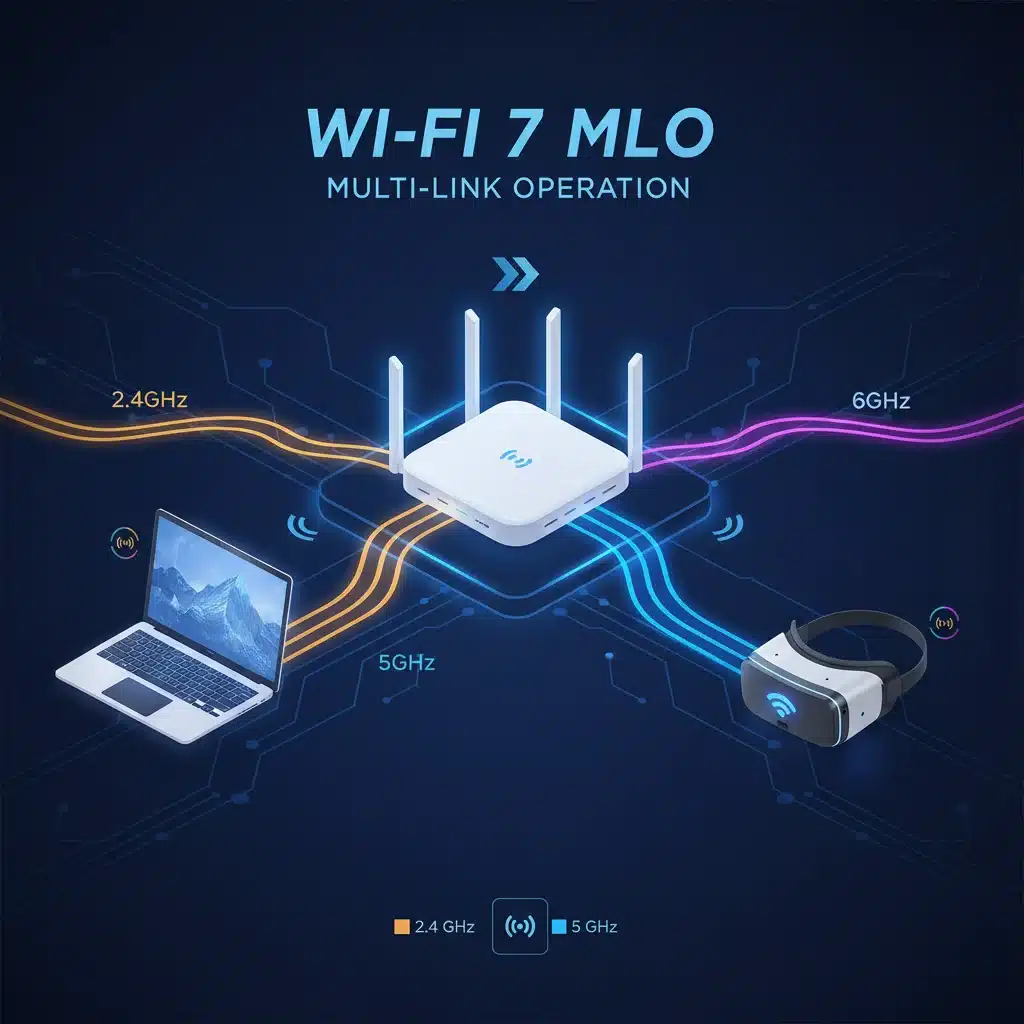
- Multi-Link Operation (MLO): MLO is a game-changer. It allows devices to simultaneously send and receive data over multiple frequency bands (2.4 GHz, 5 GHz, and 6 GHz) and/or channels. This effectively aggregates bandwidth, reduces latency, and improves reliability by providing redundant links.
- Preamble Puncturing: This feature allows the router to dynamically block out narrow interference sources within a wide channel, enabling the rest of the channel to still be used for data transmission, rather than the entire channel being unusable.
- Improved OFDMA and MU-MIMO: While present in Wi-Fi 6, these technologies are further refined in Wi-Fi 7 to handle even more concurrent users and traffic with greater efficiency.
These innovations are the bedrock of enhanced Wi-Fi 7 Performance Tips. Knowing them helps you appreciate why certain optimization steps are so effective.
Optimal Router Placement: The First Step to Superior Wi-Fi 7 Performance
The physical location of your Wi-Fi 7 router is perhaps the single most critical factor influencing its performance. A poorly placed router, even a top-tier Wi-Fi 7 model, will struggle to deliver its promised speeds. Consider these points:
Central Location, Elevated Position
Think of your Wi-Fi signal like a light bulb: it radiates outwards. Placing your router in a central location within your home ensures the signal has the shortest and most direct path to all your devices. Avoid corners or placing it against an exterior wall, as this will broadcast a significant portion of your signal outside your home, wasting bandwidth and reducing indoor coverage.
Furthermore, elevate your router. Placing it on a high shelf, a top floor, or even mounting it on a wall can significantly improve signal propagation, especially for multi-story homes. Signals travel best downwards and horizontally, so getting it off the floor and away from dense objects helps immensely.
Avoid Obstructions and Interference
Physical obstructions are the enemy of Wi-Fi signals. Walls, especially those made of brick, concrete, or metal, can severely attenuate your signal. Appliances like microwaves, cordless phones, and even certain electrical wiring can emit electromagnetic interference (EMI) that disrupts Wi-Fi. Keep your router away from:
- Thick walls and large metal objects (filing cabinets, refrigerators).
- Microwave ovens, especially when in use.
- Cordless phone base stations.
- Large aquariums (water absorbs Wi-Fi signals).
- Other electronics that might emit radio frequencies.
Remember, the 6 GHz band, while offering incredible speeds, is more susceptible to attenuation by physical objects than the 2.4 GHz or 5 GHz bands. Therefore, excellent line-of-sight is even more crucial for maximizing Wi-Fi 7 Performance Tips in the 6 GHz spectrum.
Configuring Your Wi-Fi 7 Router for Peak Efficiency
Once your router is optimally placed, it’s time to delve into its settings. Modern Wi-Fi 7 routers come with sophisticated firmware, and understanding a few key configurations can dramatically boost your network’s performance.
Firmware Updates: Stay Current
This is non-negotiable. Router manufacturers constantly release firmware updates that fix bugs, improve security, and, crucially, enhance performance and stability. Ensure your router’s firmware is always up-to-date. Many Wi-Fi 7 routers offer automatic updates, but it’s wise to check manually every few months.
Leveraging the 6 GHz Band: The Speed Highway
The 6 GHz band is where Wi-Fi 7 truly shines, offering wide, uncongested channels. To maximize Wi-Fi 7 Performance Tips, prioritize devices that support Wi-Fi 6E or Wi-Fi 7 to connect to this band. Most modern Wi-Fi 7 routers use a single SSID (network name) and intelligently steer devices to the best available band. However, if you experience issues, some routers allow you to create separate SSIDs for each band (e.g., “MyWiFi_2.4GHz”, “MyWiFi_5GHz”, “MyWiFi_6GHz”) to manually assign devices.
Ensure your router is configured to use the widest possible channels (320 MHz) on the 6 GHz band, where available and supported by your devices. This setting is usually found in the advanced wireless settings.
Multi-Link Operation (MLO) Settings
MLO is a cornerstone of Wi-Fi 7. Check your router’s advanced settings to ensure MLO is enabled. While it should be on by default, confirming its activation is important. Remember that both your router and your client devices (laptops, smartphones, VR headsets) need to support MLO to benefit from it. As more Wi-Fi 7 devices become available, MLO will become increasingly impactful for enhancing Wi-Fi 7 Performance Tips.
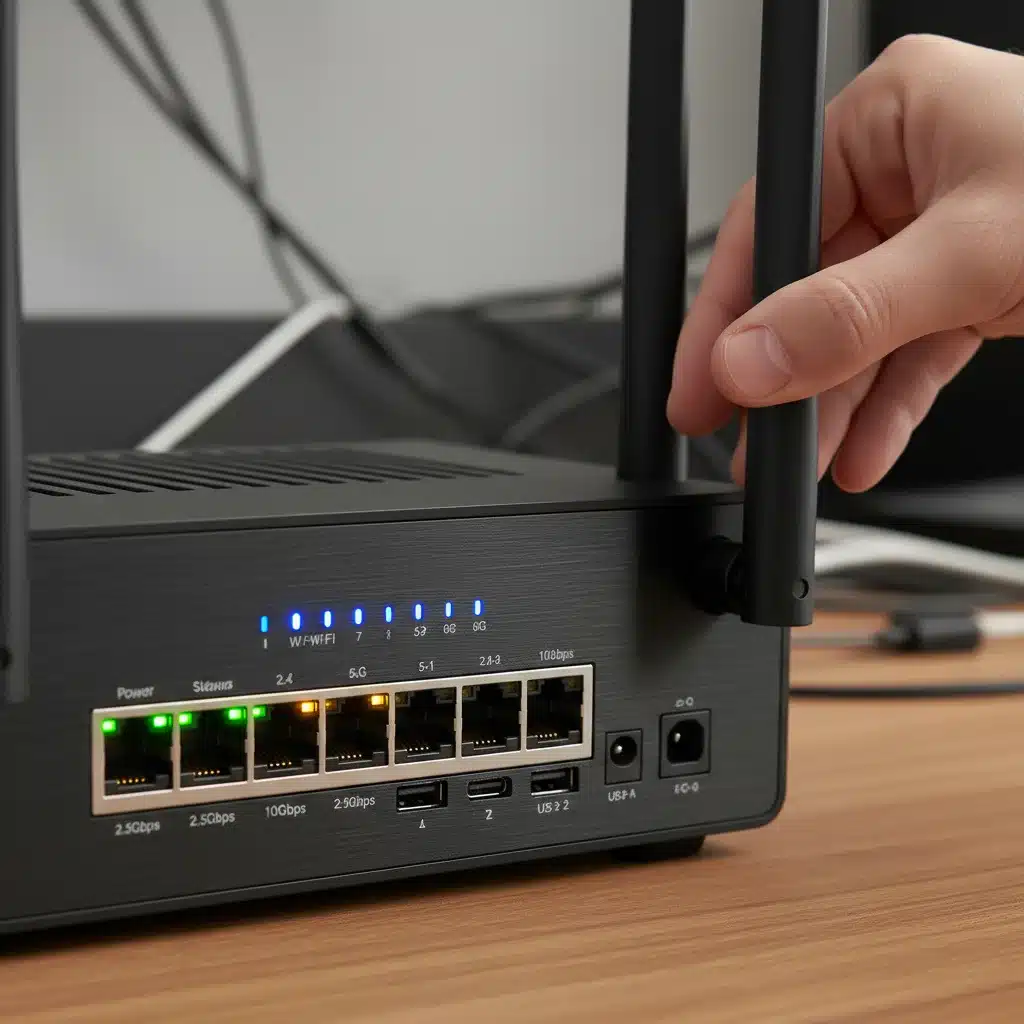
Channel Selection and Preamble Puncturing
While the 6 GHz band is relatively clear, interference can still occur. Your router usually has an auto-channel selection feature, which is generally reliable. However, if you experience persistent issues, you might explore manual channel selection. Use a Wi-Fi analyzer app on your smartphone or computer to identify the least congested channels in your area. For the 6 GHz band, with its numerous non-overlapping channels, this is less critical but still useful.
Ensure Preamble Puncturing is enabled in your router’s settings. This feature helps maintain high throughput even when narrow-band interference is present, making your wide 320 MHz channels more robust and improving overall Wi-Fi 7 Performance Tips.
Quality of Service (QoS): Prioritize Your Traffic
With multiple devices competing for bandwidth, QoS (Quality of Service) becomes essential. QoS allows you to prioritize certain types of traffic or specific devices. For example, you can give higher priority to gaming consoles, streaming devices, or work-from-home computers over less critical activities like background downloads. This ensures that your most important applications receive the bandwidth they need, reducing lag and buffering.
Most Wi-Fi 7 routers offer intelligent QoS features that can automatically detect and prioritize common applications. Familiarize yourself with these settings in your router’s interface.
Optimizing Your Devices for Wi-Fi 7
Your router is only half the equation. Your client devices also play a crucial role in achieving maximum Wi-Fi 7 Performance Tips. For U.S. households, ensuring your devices are ready for Wi-Fi 7 is key.
Upgrade to Wi-Fi 7 Compatible Devices
To fully benefit from Wi-Fi 7’s capabilities, your devices need to support it. Look for devices labeled Wi-Fi 7 (802.11be) or Wi-Fi 6E (802.11ax with 6 GHz support). While Wi-Fi 7 is backward compatible, older devices will only connect using their respective Wi-Fi standards (Wi-Fi 6, Wi-Fi 5, etc.) and won’t leverage the advanced features of Wi-Fi 7.
As of 2026, many new smartphones, laptops, smart TVs, and gaming consoles are shipping with Wi-Fi 7 support. Prioritize upgrading devices that require the highest bandwidth and lowest latency, such as VR headsets, gaming PCs, and 8K streaming devices.
Keep Device Drivers Updated
Just like router firmware, device drivers for your Wi-Fi adapters are critical. Outdated drivers can lead to compatibility issues, reduced speeds, and dropped connections. Regularly check for driver updates for your laptop’s Wi-Fi card, desktop Wi-Fi adapter, and even smart home hubs.
Enable MLO on Client Devices
If your device supports MLO, ensure it’s enabled in its network settings. This might be automatically handled by the device’s operating system, but it’s worth verifying, especially for high-performance applications where aggregated bandwidth is crucial for peak Wi-Fi 7 Performance Tips.
Advanced Strategies for U.S. Households
Beyond the basics, several advanced strategies can further fine-tune your Wi-Fi 7 network, especially in larger homes or those with unique connectivity demands.
Mesh Wi-Fi Systems with Wi-Fi 7
For larger U.S. homes or those with dead zones, a Wi-Fi 7 mesh system is an excellent investment. Unlike traditional range extenders, mesh systems create a unified network with multiple access points, providing seamless coverage throughout your home. A Wi-Fi 7 mesh system will utilize the 6 GHz band for its dedicated backhaul (the connection between mesh nodes), freeing up the 2.4 GHz and 5 GHz bands for client devices and dramatically improving overall performance and reliability.
When setting up a mesh system, ensure proper placement of each node to maximize coverage and minimize signal degradation. Follow the same principles as for a single router: central, elevated, and away from obstructions.
Wired Backhaul for Mesh Systems (Where Possible)
While Wi-Fi 7 mesh systems excel wirelessly, if you have Ethernet wiring in your home, connecting your mesh nodes via a wired backhaul will provide the absolute best performance. This frees up all wireless bands for your client devices, eliminating any wireless bottlenecks between mesh units and guaranteeing maximum Wi-Fi 7 Performance Tips for your entire network.
Network Segmentation (VLANs)
For advanced users, network segmentation using VLANs (Virtual Local Area Networks) can enhance both security and performance. You can create separate networks for IoT devices, guest access, and your primary devices. This isolates potential security risks from your main network and can prevent bandwidth-hungry IoT devices from impacting critical traffic. Many Wi-Fi 7 routers offer built-in VLAN support or allow for easy guest network creation, which is a simpler form of segmentation.
Consider a Dedicated Gaming/Streaming Network
If gaming or 8K streaming is a priority, consider allocating a specific SSID on the 6 GHz band solely for these activities. This minimizes contention from other devices and ensures the most demanding applications get exclusive access to the fastest, lowest-latency band, delivering optimal Wi-Fi 7 Performance Tips.
Troubleshooting Common Wi-Fi 7 Performance Issues
Even with the best setup, you might encounter occasional hiccups. Here’s how to troubleshoot common issues:
Speed Tests and Network Monitoring
Regularly run speed tests using reliable services (e.g., Speedtest.net) from various locations in your home and on different devices. This helps identify dead zones or areas with reduced performance. Many Wi-Fi 7 routers also come with built-in network monitoring tools that can provide insights into connected devices, bandwidth usage, and signal strength. Leverage these tools to diagnose issues and ensure consistent Wi-Fi 7 Performance Tips.
Interference Detection
If you suspect interference, use a Wi-Fi analyzer app. These apps visualize Wi-Fi networks in your vicinity, showing channel usage and signal strength. This can help you identify congested channels or external sources of interference that might be impacting your 2.4 GHz or 5 GHz bands. While the 6 GHz band is less prone to external Wi-Fi interference, other non-Wi-Fi sources could still be an issue.
Reboot Your Router
The classic IT solution: sometimes, a simple reboot can resolve many performance issues. Routers, like any computer, can benefit from a fresh start to clear their memory and reset network connections. Schedule a weekly or monthly reboot if your router supports it.
Check for Cable Integrity
Ensure all Ethernet cables connecting your router to your modem and any wired devices are in good condition and securely plugged in. Damaged or loose cables can lead to intermittent connectivity or reduced speeds, impacting overall Wi-Fi 7 Performance Tips.
The Future of Home Connectivity with Wi-Fi 7 in 2026
As 2026 unfolds, Wi-Fi 7 is set to become the backbone of advanced U.S. households, powering everything from immersive metaverse experiences to robust smart home ecosystems. By implementing these Wi-Fi 7 Performance Tips, you’re not just optimizing your current network; you’re future-proofing your home for the next wave of technological innovations.
The sheer capacity and speed of Wi-Fi 7, combined with its low latency, will enable applications that are only just beginning to emerge. Think about multi-user VR gaming without lag, instantaneous cloud rendering for graphic-intensive tasks, and perfectly synchronized smart home devices operating in real-time. These are the experiences that a truly optimized Wi-Fi 7 network can deliver.
Furthermore, as more devices adopt Wi-Fi 7, the benefits of MLO will become increasingly apparent. Imagine your smartphone streaming a 4K video while simultaneously downloading a large file, all without a hitch, because MLO is intelligently routing data across multiple bands. This level of efficiency is what sets Wi-Fi 7 apart and makes these optimization efforts so worthwhile.
Final Thoughts on Maximizing Wi-Fi 7 Performance
Maximizing your Wi-Fi 7 router’s performance in 2026 is an ongoing process. It involves understanding the technology, strategic placement, meticulous configuration, and keeping your devices and firmware updated. By following these insider tips, U.S. households can unlock the full potential of their Wi-Fi 7 networks, enjoying blazing-fast speeds, rock-solid reliability, and a seamless digital experience.
Don’t let your advanced Wi-Fi 7 router gather dust with suboptimal settings. Take the time to implement these strategies, and you’ll transform your home network into a high-performance engine, ready for anything the future of technology throws its way. Enjoy the unparalleled connectivity that Wi-Fi 7 has to offer!