Extend Laptop Lifespan: 2-Year Maintenance Guide for US Users 2026
Anúncios
In an era of rapid technological advancement, it’s easy to feel the pressure to constantly upgrade our devices. However, for many U.S. users, replacing a laptop every few years isn’t just an inconvenience; it’s a significant financial outlay. The good news? You don’t always have to. With diligent care and strategic maintenance, you can significantly extend laptop lifespan, potentially adding two years or more to its functional life. This comprehensive guide will walk you through practical, actionable tips to keep your laptop running smoothly and efficiently well into 2026 and beyond.
Think of your laptop as an investment. Just like a car, it requires regular tune-ups and careful handling to perform at its best and last longer. Neglecting maintenance can lead to slowdowns, overheating, battery degradation, and ultimately, premature failure. By adopting a proactive approach, you’ll not only save money but also reduce electronic waste, contributing to a more sustainable future. Let’s delve into the crucial aspects of laptop care, from hardware hygiene to software optimization and smart usage habits.
Anúncios
Understanding the Lifespan of Your Laptop: What Factors Matter?
Before we dive into specific maintenance tips to extend laptop lifespan, it’s important to understand what influences how long your device will naturally last. Several factors play a critical role:
- Build Quality: Higher-end laptops often use more durable materials and components, which inherently leads to a longer physical lifespan.
- Usage Intensity: A laptop used for intense gaming or video editing 8 hours a day will likely wear out faster than one used for light browsing a few hours a week.
- Environmental Conditions: Extreme temperatures, high humidity, dust, and pet hair can all accelerate wear and tear on internal components.
- Battery Cycles: Laptop batteries have a finite number of charge cycles. How you manage your battery significantly impacts its overall health.
- Software Load: Running too many demanding applications or having a cluttered operating system can stress hardware and lead to performance degradation.
- Maintenance Habits: This is where you have the most control. Regular cleaning, software updates, and proper handling are paramount.
By addressing these factors, particularly those under your control, you can actively work to extend laptop lifespan beyond its typical expected duration of 3-5 years. Our goal here is to push that to 5-7 years, providing you with reliable performance without the need for an early replacement.
Hardware Hygiene: The Foundation of Longevity
Physical cleanliness and proper handling are often overlooked but are absolutely critical for extending your laptop’s life. Dust, dirt, and spills are common enemies of electronics.
Keep it Clean, Inside and Out
Dust is perhaps the biggest silent killer of laptops. It accumulates inside, clogging fans and heat sinks, leading to overheating. Overheating is detrimental to all internal components, especially the CPU and GPU, significantly shortening their lifespan.
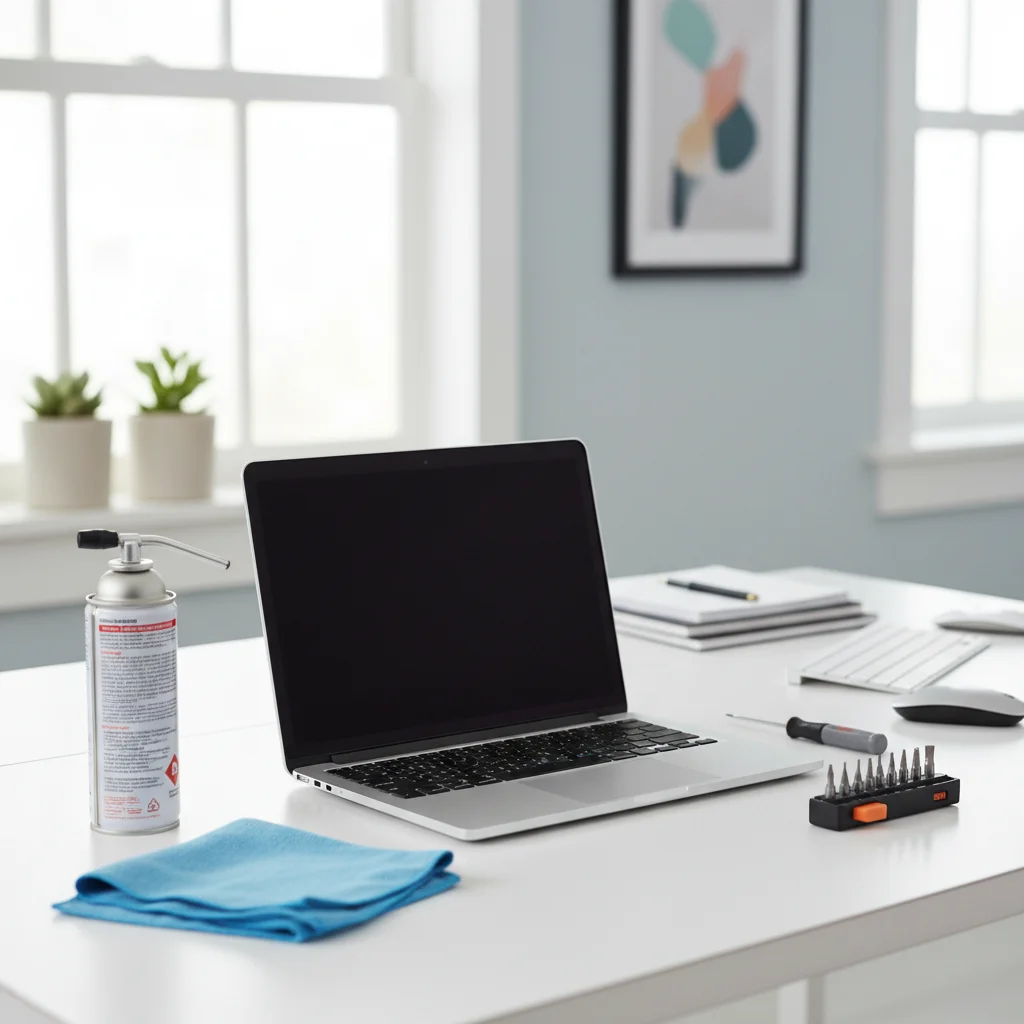
- External Cleaning: Regularly wipe down your screen with a microfiber cloth and a specialized screen cleaner (never use harsh chemicals). Clean the keyboard with compressed air to dislodge crumbs and dust, and use a damp cloth (not wet) to wipe down the keys and palm rest.
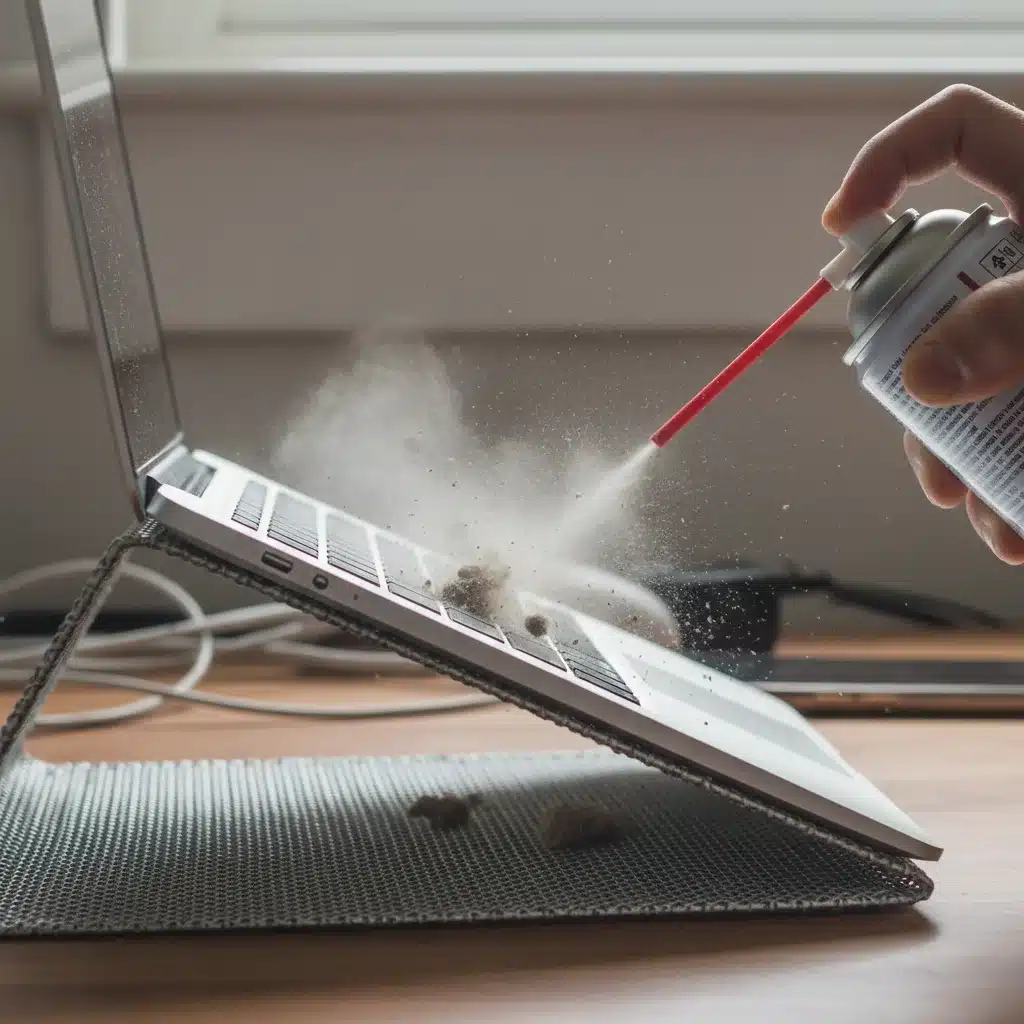
- Internal Cleaning (Fans and Vents): This is crucial. Every 3-6 months, use a can of compressed air to blow dust out of the cooling vents. Make sure the laptop is off and unplugged. Hold the can upright to prevent propellant from spraying. For more advanced users, opening the laptop to clean the fans directly can be beneficial, but only if you’re comfortable with it and know how to do it safely. Consult your laptop’s manual or a professional if unsure.
- Port Cleaning: Use compressed air or a non-conductive tool (like a toothpick, very gently) to clear dust and debris from USB ports, HDMI ports, and the charging port.
Optimal Operating Environment
Where and how you use your laptop has a direct impact on its health.
- Proper Airflow: Always use your laptop on a hard, flat surface. Avoid using it on soft surfaces like beds, pillows, or laps, as these block the vents and cause rapid overheating. Consider a laptop stand to further improve airflow.
- Temperature Control: Keep your laptop in a cool, dry environment. Avoid direct sunlight and extreme temperatures. If it feels hot, give it a break or ensure its vents are clear.
- Protection from Spills and Drops: Accidents happen, but prevention is key. Keep liquids away from your workspace. Invest in a sturdy laptop bag for transport.
Battery Health: Powering Your Longevity
The battery is often the first component to show signs of age. While it’s a consumable, proper management can significantly extend laptop lifespan by keeping its battery healthy for longer.
Smart Charging Habits
Modern lithium-ion batteries don’t suffer from the ‘memory effect’ of older batteries, but they still have optimal charging practices.
- Avoid Constant 0-100% Cycles: Ideally, keep your battery charged between 20% and 80% for daily use. This reduces stress on the battery cells. Many manufacturers now include software that allows you to set charging thresholds (e.g., stopping charging at 80%).
- Don’t Leave It Plugged In All the Time (Unless Optimized): While modern laptops have circuitry to prevent overcharging, consistently keeping the battery at 100% while plugged in can still contribute to degradation over time. If your laptop has a battery health management feature, enable it. If you primarily use your laptop plugged in, consider removing the battery if it’s easily removable (though this is rare in newer models).
- Calibrate Periodically: Once every few months, let the battery drain completely and then charge it to 100% without interruption. This helps recalibrate the battery’s charge indicator.
- Store Properly: If you’re storing your laptop for an extended period, charge the battery to around 50-60% before putting it away, and store it in a cool, dry place.
Power Management Settings
Utilize your operating system’s power management options to conserve battery life and reduce strain.
- Adjust Brightness: The screen is a major power consumer. Keep brightness at a comfortable but not excessive level.
- Enable Sleep/Hibernate: Configure your laptop to go to sleep or hibernate after periods of inactivity.
- Close Unused Applications: Background apps consume CPU and RAM, which in turn use more battery.
Software Savvy: Keeping Your System Lean and Efficient
Hardware is only half the battle; a well-maintained software environment is equally crucial to extend laptop lifespan and ensure smooth performance.
Regular Updates and Security
Operating system and software updates aren’t just about new features; they often include critical security patches and performance improvements.
- Keep OS Updated: Whether you’re on Windows, macOS, or Linux, regularly install updates. These often fix bugs, improve stability, and enhance security, preventing issues that could stress your hardware.
- Update Drivers: Ensure your graphics card, chipset, and other hardware drivers are up to date. Outdated drivers can lead to instability, crashes, and suboptimal performance.
- Antivirus and Malware Protection: A robust antivirus program is essential. Malware can slow down your system, consume resources, and even damage your data, indirectly taxing your hardware. Run regular scans.
System Optimization and Decluttering
A cluttered and inefficient software environment can make even powerful hardware feel sluggish, forcing it to work harder and potentially shortening its life.
- Uninstall Unused Programs: Get rid of software you no longer use. These programs take up disk space and can sometimes run in the background, consuming resources.
- Manage Startup Programs: Many applications are set to launch automatically when your laptop starts. Disable unnecessary startup programs to reduce boot times and free up RAM.
- Disk Cleanup and Defragmentation (for HDDs): Regularly run disk cleanup tools to remove temporary files, system logs, and other junk. If you have an older laptop with a Hard Disk Drive (HDD), defragmenting it periodically can improve performance. For Solid State Drives (SSDs), defragmentation is unnecessary and can even be detrimental; instead, ensure TRIM is enabled.
- Clear Browser Cache: While not directly impacting hardware lifespan, a bloated browser cache can slow down your web experience.
- Back Up Your Data: While not a direct maintenance tip, regular backups protect your valuable data in case of an unexpected hardware failure, preventing data loss and reducing stress if a major issue arises.
Usage Habits: Small Changes, Big Impact
How you interact with your laptop daily can significantly influence its longevity. Adopting mindful habits can greatly extend laptop lifespan.
Avoid Overloading Your System
While modern laptops are powerful, they still have limits. Pushing them beyond those limits consistently leads to stress and premature wear.
- Multitasking Wisely: Avoid running too many resource-intensive applications simultaneously. Close programs you’re not actively using.
- Monitor Resource Usage: Use Task Manager (Windows) or Activity Monitor (macOS) to see which applications are consuming the most CPU, RAM, and disk resources. Identify and address any rogue processes.
- Don’t Block Vents: As mentioned, ensure proper airflow. This includes not placing objects near or on the vents.
Safe Shutdowns and Reboots
It might seem basic, but proper shutdown procedures are important.
- Regular Reboots: While sleep mode is convenient, a full reboot periodically (at least once a week) clears RAM, resets processes, and applies updates, leading to a fresher, more stable system.
- Proper Shutdown: Always use the operating system’s shutdown command rather than just holding down the power button (unless it’s an emergency). This ensures all processes are properly closed and data is saved.
Protect Against Power Surges
Fluctuations in electrical current can be damaging to your laptop’s sensitive components.
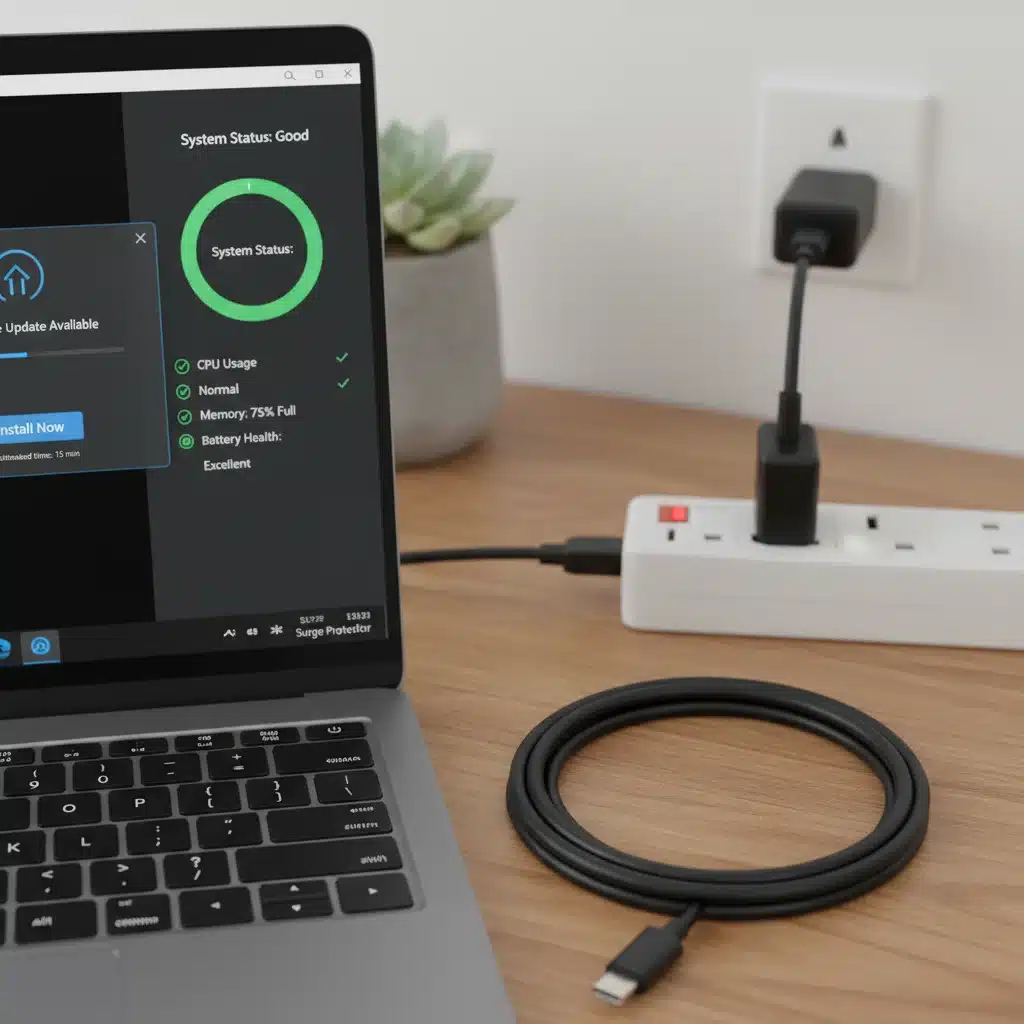
- Use a Surge Protector: Always plug your laptop (and its charger) into a surge protector. This provides a crucial line of defense against sudden power spikes.
- Unplug During Storms: If there’s a severe electrical storm, it’s safest to unplug your laptop completely from the wall outlet.
Strategic Upgrades: Breathing New Life into Older Laptops
Sometimes, maintenance alone isn’t enough, but that doesn’t mean you need a whole new laptop. Strategic upgrades can dramatically extend laptop lifespan, often for a fraction of the cost of a new device.
RAM Upgrade
More RAM (Random Access Memory) allows your laptop to handle more applications and browser tabs simultaneously without slowing down. This is often one of the most impactful and easiest upgrades.
- Identify Compatibility: Check your laptop’s specifications to determine the maximum RAM it supports and the type of RAM modules (e.g., DDR4, DDR5).
- Installation: For many laptops, upgrading RAM is a straightforward process, often involving removing a back panel and snapping in new modules. If unsure, consult a professional.
SSD Installation (Solid State Drive)
If your laptop still uses an older Hard Disk Drive (HDD), upgrading to an SSD is perhaps the single most impactful upgrade you can make for performance. SSDs are significantly faster, more durable, and consume less power.
- Speed Boost: You’ll notice dramatically faster boot times, application loading, and overall system responsiveness.
- Durability: With no moving parts, SSDs are more resistant to drops and bumps.
- Migration: You can either perform a fresh installation of your operating system on the new SSD or clone your existing drive, which can be more complex.
Battery Replacement
If your battery health has significantly degraded despite best practices, a replacement can breathe new life into your mobile computing experience.
- Source Quality Replacements: Always purchase replacement batteries from reputable vendors or directly from the manufacturer to ensure safety and compatibility.
- Professional Installation: For many modern laptops, battery replacement can be complex. Consider professional installation to avoid damaging other components.
When to Seek Professional Help
While many maintenance tasks can be done yourself, there are times when professional intervention is necessary to extend laptop lifespan safely and effectively.
- Persistent Overheating: If cleaning vents doesn’t solve overheating, the thermal paste on your CPU/GPU might need to be replaced, a task best left to professionals.
- Hardware Failures: Strange noises, frequent crashes, or components not working (e.g., ports, keyboard keys) often indicate a hardware issue requiring diagnosis and repair.
- Complex Upgrades: If you’re uncomfortable opening your laptop or performing intricate component swaps, a professional technician can ensure the job is done correctly without causing further damage.
- Deep Malware Infections: Some malware can be incredibly stubborn and difficult to remove without specialized tools, potentially requiring a complete system reinstallation.
The Economic and Environmental Benefits of Extending Laptop Lifespan
Beyond the immediate gratification of a well-performing machine, choosing to extend laptop lifespan offers significant advantages:
- Cost Savings: The most obvious benefit is avoiding the expense of purchasing a new laptop every few years. Even if you invest in a few upgrades, it’s typically far less than a brand-new device.
- Reduced E-waste: Electronic waste is a growing global problem. By keeping your laptop longer, you contribute to reducing the amount of discarded electronics, lessening the environmental impact of manufacturing and disposal.
- Familiarity and Comfort: Sticking with a familiar operating system and hardware can save you time and effort in learning new systems and transferring data.
- Predictable Performance: A well-maintained older laptop can often outperform a poorly maintained newer one.
Summary: Your Roadmap to Laptop Longevity
Extending your laptop’s lifespan by two years or more is entirely achievable with a consistent and mindful approach to maintenance. For U.S. users looking to make their tech investments last longer in 2026, the key takeaways are:
- Prioritize Hardware Hygiene: Regular cleaning of external surfaces, and especially internal fans and vents, to prevent overheating.
- Optimize Battery Health: Adopt smart charging habits, keep charge levels between 20-80% for daily use, and utilize power management settings.
- Maintain Software Vigilance: Keep your operating system, drivers, and antivirus software updated. Regularly declutter your system by uninstalling unused programs and managing startup items.
- Practice Smart Usage: Avoid overloading your system, perform regular reboots, and protect your device from power surges with a surge protector.
- Consider Strategic Upgrades: Don’t dismiss older laptops; RAM and SSD upgrades can offer a dramatic performance boost, making your device feel new again.
- Know When to Call a Pro: For complex issues or deep internal cleaning, professional help can prevent further damage and ensure effective repairs.
By integrating these tips into your routine, you’ll not only enjoy a more reliable and responsive laptop but also make a smart financial and environmental choice. Your laptop is a powerful tool; treat it well, and it will serve you faithfully for many years to come.